
The Digital Architecture of Modern IPTV Streaming
Behind the sleek graphics and instant television playback of Brampton IPTV lies a sophisticated digital delivery framework powered by standardized playlist specifications and structured program metadata. Two acronyms dominate contemporary IPTV configuration: M3U (Moving Picture Experts Group Audio Layer 3 Uniform Resource Locator) and EPG (Electronic Program Guide). Understanding how these protocols operate enables subscribers to unlock superior organizational control, faster channel switching, and reliable programming schedules across all their media hardware.
In this technical manual, we deconstruct the anatomy of an M3U file, examine how the modern Xtream Codes API streamlines authentication, and explain how our synchronized XMLTV EPG feeds provide television schedules for over 35.000+ international live channels.
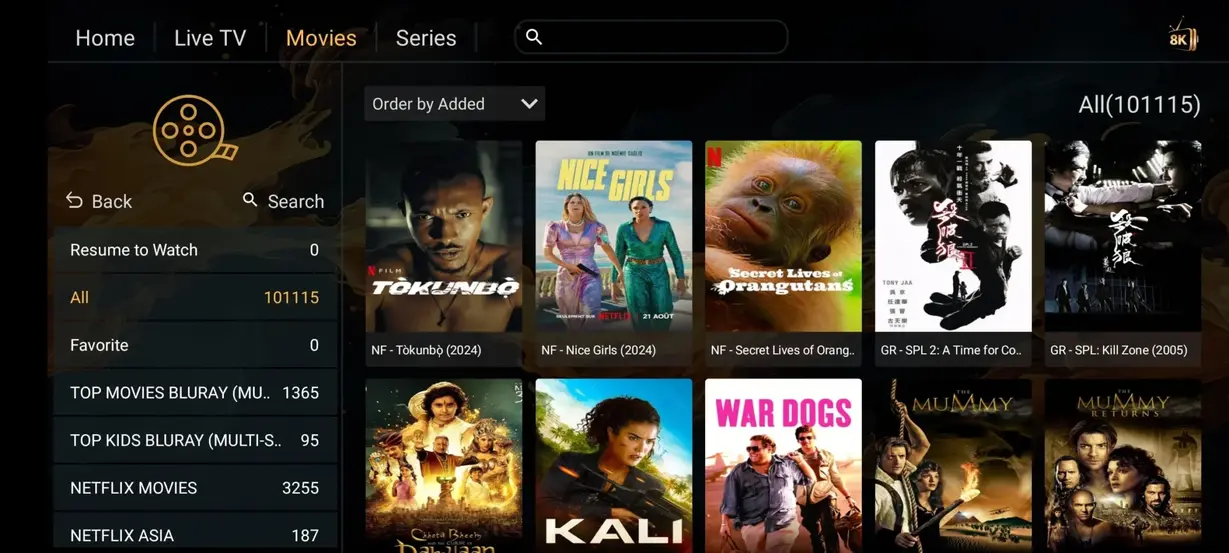
1. What is an M3U Playlist and How Does It Work?
At its core, an M3U file is a plain-text document formatted according to strict UTF-8 standards that instructs media players where to locate and retrieve audio and video streams over the internet. When extended to video broadcasting (often designated as M3U8 or Extended M3U), the file contains structured header lines beginning with #EXTM3U and individual channel descriptor tags starting with #EXTINF.
An individual channel entry inside an advanced Brampton IPTV M3U playlist contains critical metadata parameters:
- tvg-id: A standardized alphanumeric identifier that connects the video stream to corresponding program schedules inside the XMLTV EPG database.
- tvg-name: The official broadcast name of the television network.
- tvg-logo: A high-resolution PNG or SVG URL that directs the media player to download and display the channel's official station icon.
- group-title: The regional or thematic category (e.g., "USA | Sports", "UK | Cinema", "DE | Documentaries") used to build intuitive folder trees in your player interface.
- Stream URL: The secure, authenticated network address pointing directly to our load-balanced edge server transcode feeds.
2. M3U URLs vs. Xtream Codes API: Why Xtream Codes is Superior
In the early days of IPTV, users were required to copy massive, multi-megabyte M3U text files into applications. This method had significant drawbacks: static files did not automatically reflect new channel additions, and entering long, 80-character URLs using a television remote control was tedious and prone to typos.
The development of the Xtream Codes API revolutionized IPTV configuration. Instead of managing unwieldy URLs, the Xtream Codes protocol requires only three simple credentials:
- Server Portal URL: The secure server domain address (e.g.,
http://portal.brampton-iptv.online:8080). - Username: Your unique subscriber account handle.
- Password: Your encrypted access passphrase.
When an application connects via Xtream Codes API, it communicates directly with our database via lightweight JSON requests. It downloads category indexes on demand, separates Live TV from VOD movies and series, checks subscription expiration dates, and automatically updates channel listings whenever our broadcast engineers add new networks.
3. The Power of XMLTV Electronic Program Guides (EPG)
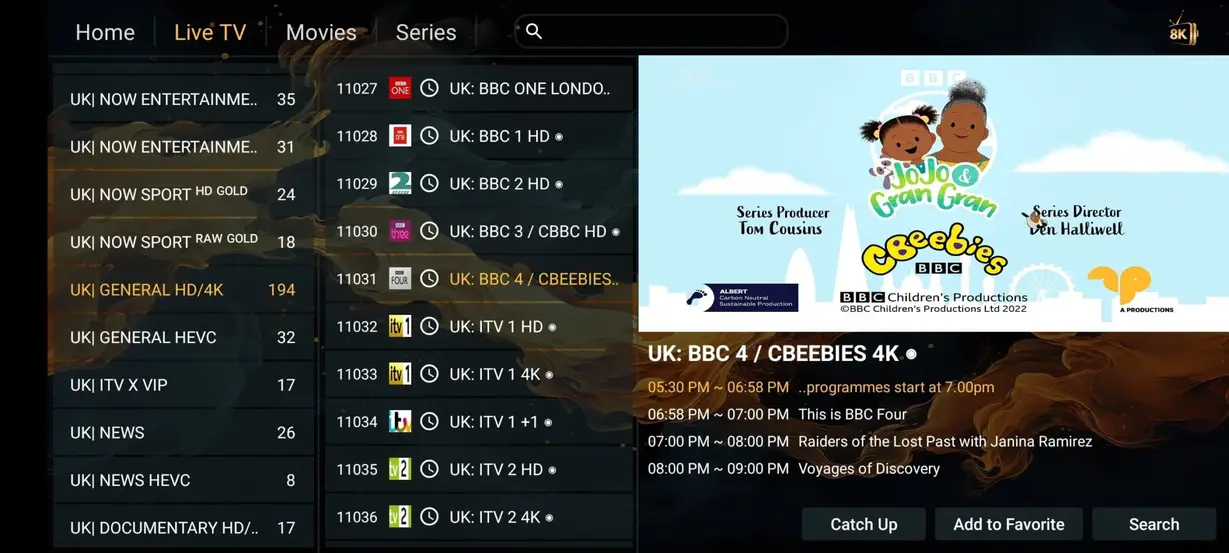
Television without an interactive schedule is frustrating. An Electronic Program Guide (EPG) provides the visual on-screen grid that displays current programming, upcoming broadcast times, episode synopses, actor credits, and parental rating advisories. Our EPG servers generate formatted XMLTV data files that sync daily with international satellite and broadcast telemetry.
Brampton IPTV provides synchronized EPG data covering:
- Full 7-Day Forward Schedules: Plan your weekly viewing for prime-time dramas, sporting events, and weekend movie premieres.
- Time-Shift Synchronization: Automatic timezone compensation ensures that whether you live on the East Coast, West Coast, or in Europe, schedules display accurately in your local time.
- Catch-Up Tagging: Channels equipped with 7-day cloud replay are visually tagged with a clock or restart icon inside your EPG grid, allowing you to rewind past shows instantly.
4. Step-by-Step Guide to Adding M3U & EPG in Popular Players
Connecting your credentials is quick and painless across all major software environments:
Configuring TiviMate (Android TV / Firestick)
- Open TiviMate, select Add Playlist, and choose Xtream Codes.
- Input the Server Address, Username, and Password sent to your WhatsApp or email by Brampton IPTV support.
- Toggle ON Include TV Channels and Include VOD.
- Click Next. TiviMate will automatically detect and link the associated XMLTV EPG guide URL without manual entry.
Configuring IPTV Smarters Pro (iOS / Windows / Mac)
- Launch IPTV Smarters and click Add User.
- Select Login with Xtream Codes API.
- Enter Any Name in the profile field (e.g., "Brampton IPTV").
- Enter your assigned Username, Password, and Server Portal URL, then click Add User.
- Click Install EPG on the main dashboard to download all television schedules.
5. Troubleshooting M3U & EPG Common Errors
If your program guide displays 'No Information' or your playlist fails to load, implement these quick diagnostic steps:
- Clear EPG Cache: In TiviMate settings, go to EPG > Clear EPG > Update EPG. This purges corrupted temporary schedule tables and downloads a fresh XMLTV feed.
- Check Timezone Settings: Ensure your television or streaming box system clock is set to automatic network time. A discrepancy of just 15 minutes can cause program guide misalignment.
- Verify Character Spacing: When copying M3U links or Xtream Codes passwords from WhatsApp, ensure you do not copy accidental leading or trailing blank spaces.
Advanced Playlist Customization: Filtering & Channel Organization
With over 35.000+ live television channels available on Brampton IPTV, navigating through thousands of foreign language channels or regional news feeds that you rarely watch can slow down your browsing. Modern IPTV applications provide sophisticated playlist editing and category filtering tools:
1. Category Filtering in TiviMate & Smarters
Inside TiviMate or IPTV Smarters Pro, you can customize visible channel groups. Simply navigate to Settings > Groups / Categories and uncheck country folders you do not intend to watch. For example, if you only require US National, US Sports, UK Cinema, and Canadian channels, hiding other regional groups creates a streamlined, clutter-free channel guide that scrolls at lightning speed.
2. Custom Channel Reordering and Favorite Groups
Create a dedicated 'Favorites' folder and pin your top 20 most-watched networks (such as ESPN, Sky Sports, HBO, CNN, and BBC One) to the very top of your guide. Press and hold the OK or Menu button on any channel within your guide, select Add to Favorites, and assign a custom channel number. This enables quick numeric tuning on remotes equipped with number pads.
3. XMLTV Time-Shift & Offset Configuration
Occasionally, international channels originating from Europe or the UK may show program guide schedules that are offset by several hours relative to Eastern Standard Time (EST) or Pacific Standard Time (PST). Most players include an 'EPG Time Shift' setting per channel or per playlist. If your UK sports match schedule appears 5 hours ahead of local broadcast time, simply apply a -5.00 hour offset to synchronize the on-screen guide with your local clock perfectly.
Frequently Asked Questions About M3U & EPG Setup
While you can download the raw M3U text file, we strongly recommend using the dynamic M3U URL or Xtream Codes API. Using the dynamic link ensures that when our engineers add new channels or update transcode frequencies, your player automatically synchronizes without needing to re-download files.
This typically occurs when the player's internal guide cache is full or has not updated in the last 24 hours. Navigate to your app's EPG settings, click 'Clear EPG', and then click 'Update EPG'. Ensure your device has an active internet connection during this update.
Get Instant Access to 35.000+ Synchronized Channels
Our server infrastructure delivers instantaneous M3U playlist loading and lightning-fast EPG schedule updates on all modern streaming devices.