
The Ultimate Masterclass for Firestick IPTV Installation
The Amazon Fire TV Stick is universally acknowledged as the most versatile, cost-effective streaming hardware on the market. Powered by an optimized fork of the Android operating system (Fire OS), the Firestick grants users total freedom to install advanced third-party media players that are otherwise unavailable on closed smart television ecosystems.
Whether you own the Amazon Fire TV Stick 4K, 4K Max, Fire TV Cube, or Fire TV Lite, this step-by-step masterclass will guide you through preparing your device, installing the Downloader utility, sideloading verified IPTV player software, and configuring your Brampton IPTV subscription credentials for flawless 4K UHD streaming.
Phase 1: Preparing Your Firestick (Enabling Developer Options)
Before your Firestick can install applications outside the Amazon Appstore, you must enable third-party app permissions in settings:
- From your Firestick home screen, navigate to the Settings (Gear Icon) on the far right.
- Scroll down and select My Fire TV.
- If you see Developer Options, proceed to Phase 2. If Developer Options is missing (hidden on newer Fire OS updates), click on About.
- Highlight the first item (your device name, e.g., Fire TV Stick 4K Max) and press the center Select button 7 times rapidly. A notification will appear at the bottom stating: "No need, you are already a developer."
- Press the Back button once to return to My Fire TV. Select Developer Options.
- Turn ON ADB Debugging and toggle Apps from Unknown Sources to ON.
Phase 2: Installing the Downloader Utility
Because third-party IPTV media players like TiviMate or customized Smarters apps are distributed via direct APK packages, you need a safe file transfer tool:
- Return to the Firestick Home screen and click the Find (Search) icon.
- Type Downloader in the search bar. Select the orange Downloader app icon developed by AFTVnews.
- Click Download / Get to install the application.
- Once installed, open Downloader and click Allow when prompted for file storage access permissions.
Phase 3: Sideloading Your IPTV Player Application
Inside the Downloader app URL bar, you can input direct download links or numeric shortcodes for your preferred IPTV player:
- For TiviMate: Enter the official TiviMate direct APK download URL or numeric shortcode.
- For IPTV Smarters Pro: Enter the verified Smarters APK repository shortcode provided in your Brampton IPTV activation message.
- For XCIPTV / HOT Player: Enter the respective package shortcode.
Once the download completes, Downloader will automatically prompt you with an installation screen. Click Install in the bottom right corner. After installation is complete, click Delete twice to remove the temporary APK installer file, conserving valuable internal storage on your Firestick.
Phase 4: Entering Brampton IPTV Account Credentials
Now launch your newly installed IPTV player from your Firestick Apps menu:
- Select Login with Xtream Codes API (recommended) or Load M3U Playlist.
- Enter Any Name in the profile description (e.g., "Brampton IPTV").
- Enter the exact Username, Password, and Server Portal URL sent to your WhatsApp or email upon purchase.
- Click Add User / Submit.
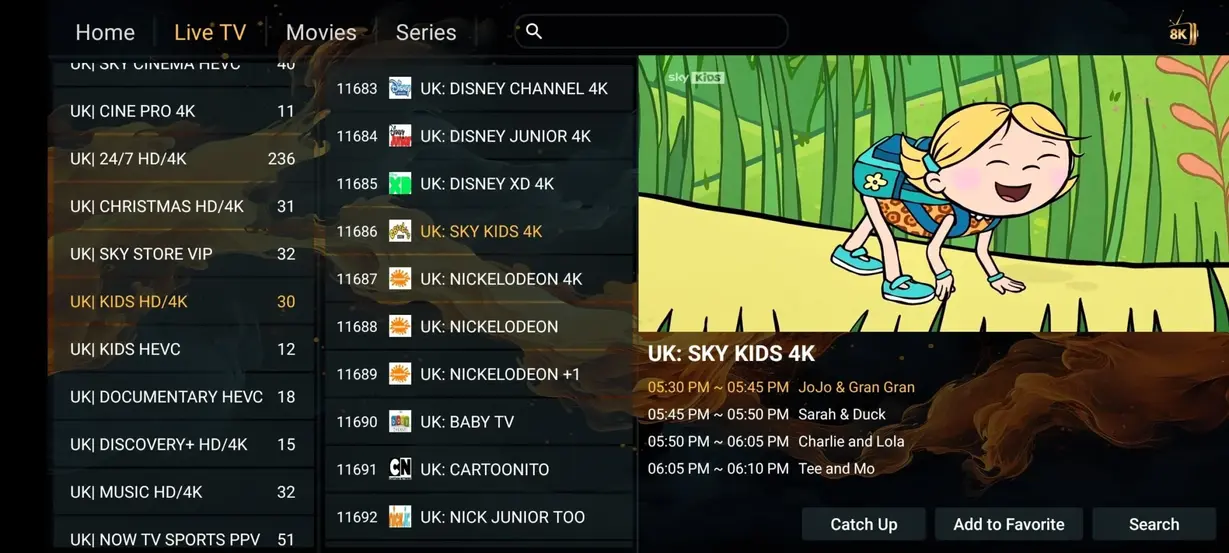
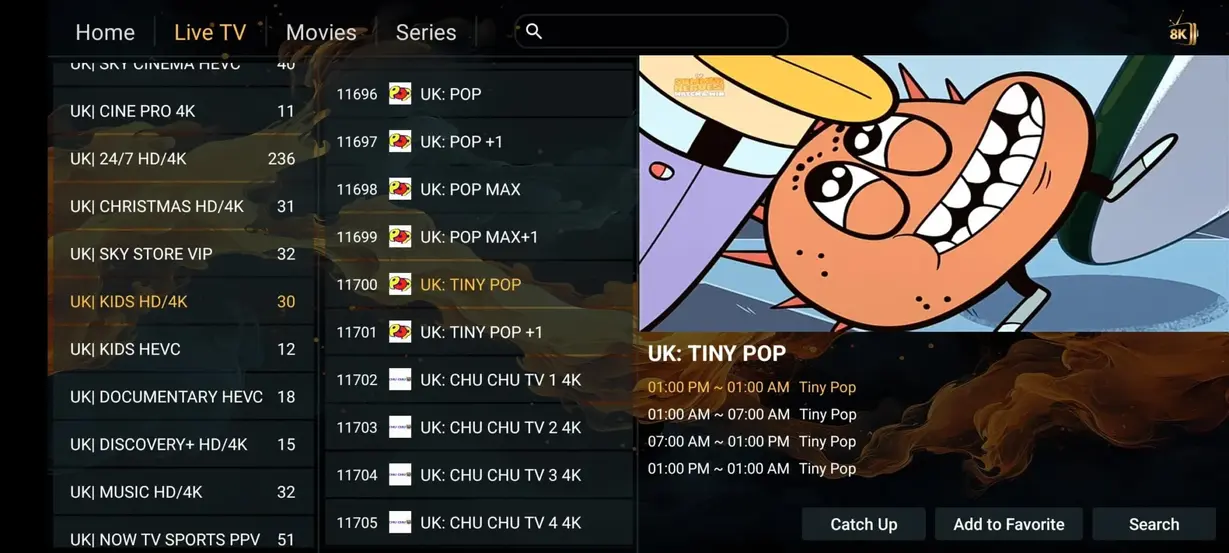
Allow 30 to 60 seconds for your initial playlist synchronization. Your complete directory of 35.000+ live channels, 142.000+ VOD cinema titles, and interactive EPG guide will populate your screen.
Phase 5: Firestick Performance Optimization Checklist
To ensure your Firestick never drops frames during live sporting events, review our dedicated Installation Guide which details setting hardware video decoders, adjusting buffer size in TiviMate, and configuring router 5GHz Wi-Fi channels.
Advanced Firestick Configuration for 60FPS Sports Streaming
Once you have installed your IPTV player and synchronized your Brampton IPTV channels, applying several targeted Fire OS system adjustments will unlock buttery-smooth 60 FPS playback for live football, basketball, and racing events:
1. Set Video Resolution to Match Original Frame Rate
By default, the Firestick forces all video output to 60Hz. When streaming European sporting events broadcast at 50Hz (such as Premier League or UEFA Champions League feeds), this refresh rate mismatch can cause subtle micro-judder. Navigate to Firestick Settings > Display & Sounds > Display > Match Original Frame Rate and toggle it to ON. Your television will automatically match the native frame rate of the incoming broadcast stream.
2. Configure Color Depth to 10-Bit or 12-Bit
If your television supports High Dynamic Range (HDR10 or Dolby Vision), go to Settings > Display & Sounds > Display > Color Depth and select Up to 10 bits or Up to 12 bits. This prevents color banding in dark scenes during movies and delivers richer turf greens and jersey colors during stadium broadcasts.
3. Managing Firestick Background Processes
Amazon Firesticks run multiple background analytics and telemetry services that consume valuable RAM. To maximize available memory for video decoding, navigate to Settings > Preferences > Privacy Settings and turn OFF Device Usage Data and Collect App Usage Data. Next, go to Preferences > Data Monitoring and turn it OFF. Freeing these resources ensures that your IPTV player has dedicated access to the device's CPU and graphics hardware.
Frequently Asked Firestick IPTV Installation Questions
Yes, sideloading is an official, built-in feature of the Android and Fire OS operating systems designed for developers and power users. As long as you download verified applications from reputable sources, it poses zero risk to your hardware.
No. Players like TiviMate and IPTV Smarters Pro have small file footprints (typically under 80MB). Remember to click 'Delete' in Downloader after installing to remove the temporary APK installer file from your storage.
Ready to Stream 4K Live Sports on Your Firestick?
Brampton IPTV delivers zero-buffering servers, 35.000+ channels, and 24/7 human WhatsApp support. Get started risk-free today.